How-To Guides
Creating a Playlist
A playlist is a loop of content items that plays continuously on your screen. You choose the order and how long each item is shown.
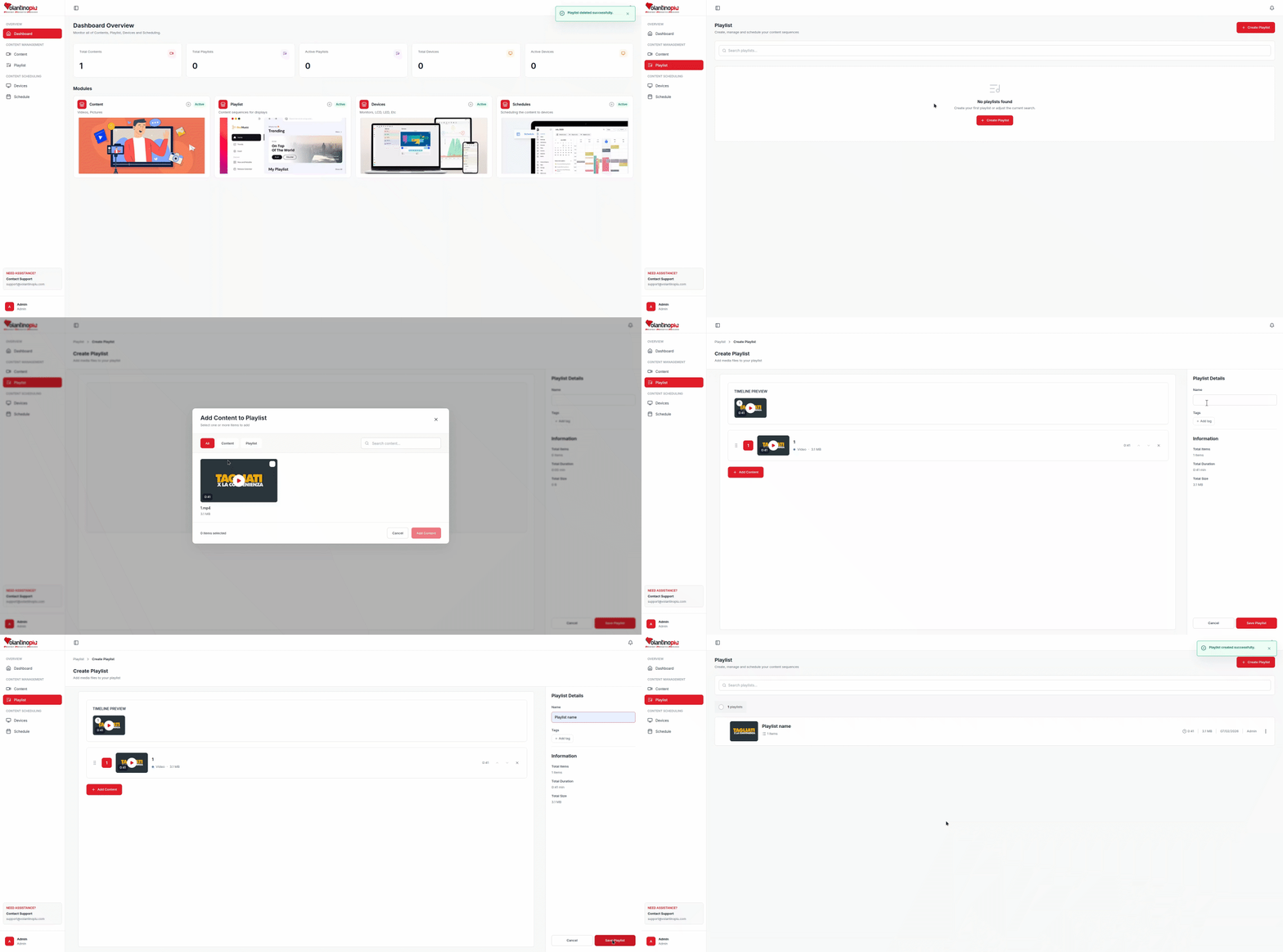
How to create a playlist
- Click Playlists in the left menu.
- Click New Playlist.
- Enter a name for your playlist (e.g. "Morning Lobby Loop").
- Click Add content.
- Click Save — your playlist has been created .
Setting how long each item plays
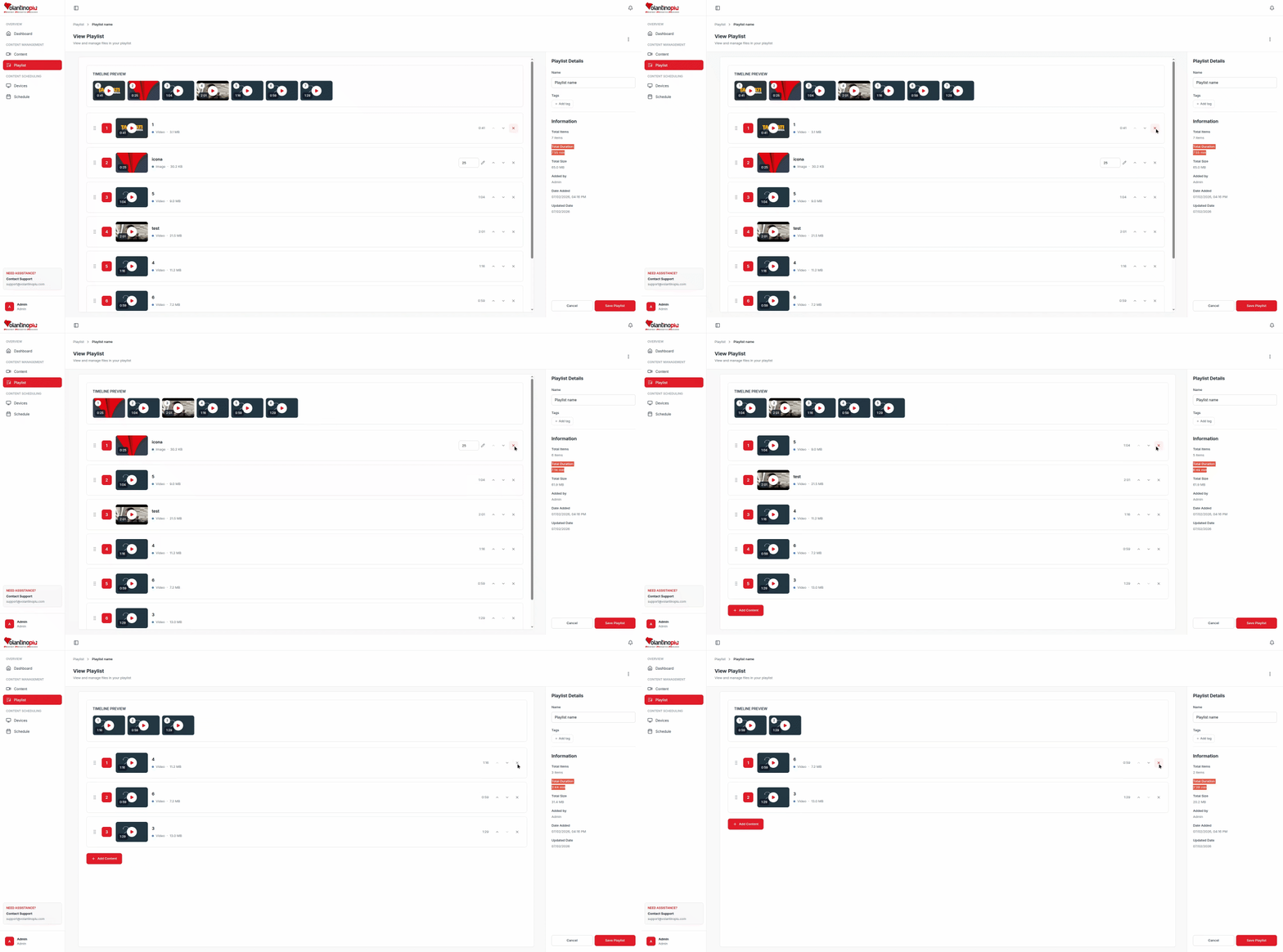
Each item in the playlist has its own duration:
- Videos — by default they play for their full length.
- Images — by default they use the duration set on the content item itself.
To change the duration of a specific item in this playlist:
- Click the duration field on the right side of the item row.
- Type the number of seconds.
- The change is saved automatically.

Reordering items
Drag the ⠿ handle on the left of any row up or down to change the play order. Items always loop back to the top when the last one finishes.

Removing an item
Click the ✕ button on the right side of an item row to remove it from the playlist. This does not delete the content file — it only removes it from this playlist.
Saving and activating
Your changes are saved automatically as you edit. When you are ready to send the playlist to a screen, see Assigning Content to a Screen.
Tips
- Aim for a total playlist duration of 2–5 minutes for most lobby or retail use cases.
- Put your most important message first — some viewers only see the beginning of a loop.
- Use a mix of short images (5–10 s) and one or two videos for variety.