

Getting Started
Quick Start
Get your first screen playing content in 5 minutes.
What you need
- A computer with a web browser
- Your login credentials
- A screen with the player app already installed (see Installing the Player if not done yet)
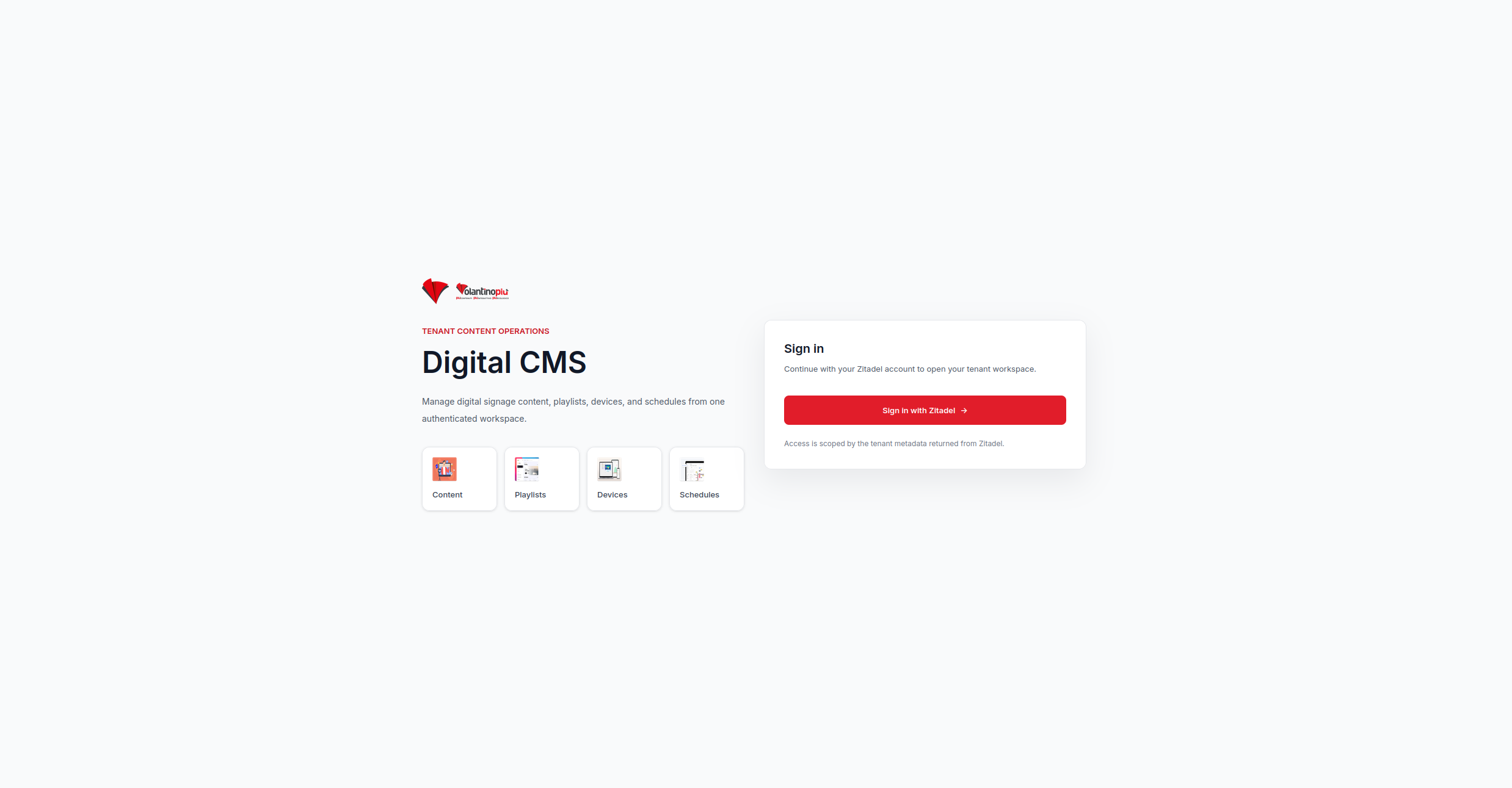
Step 1 — Log in
Go to your Digital Signage dashboard URL and log in with your email and password.
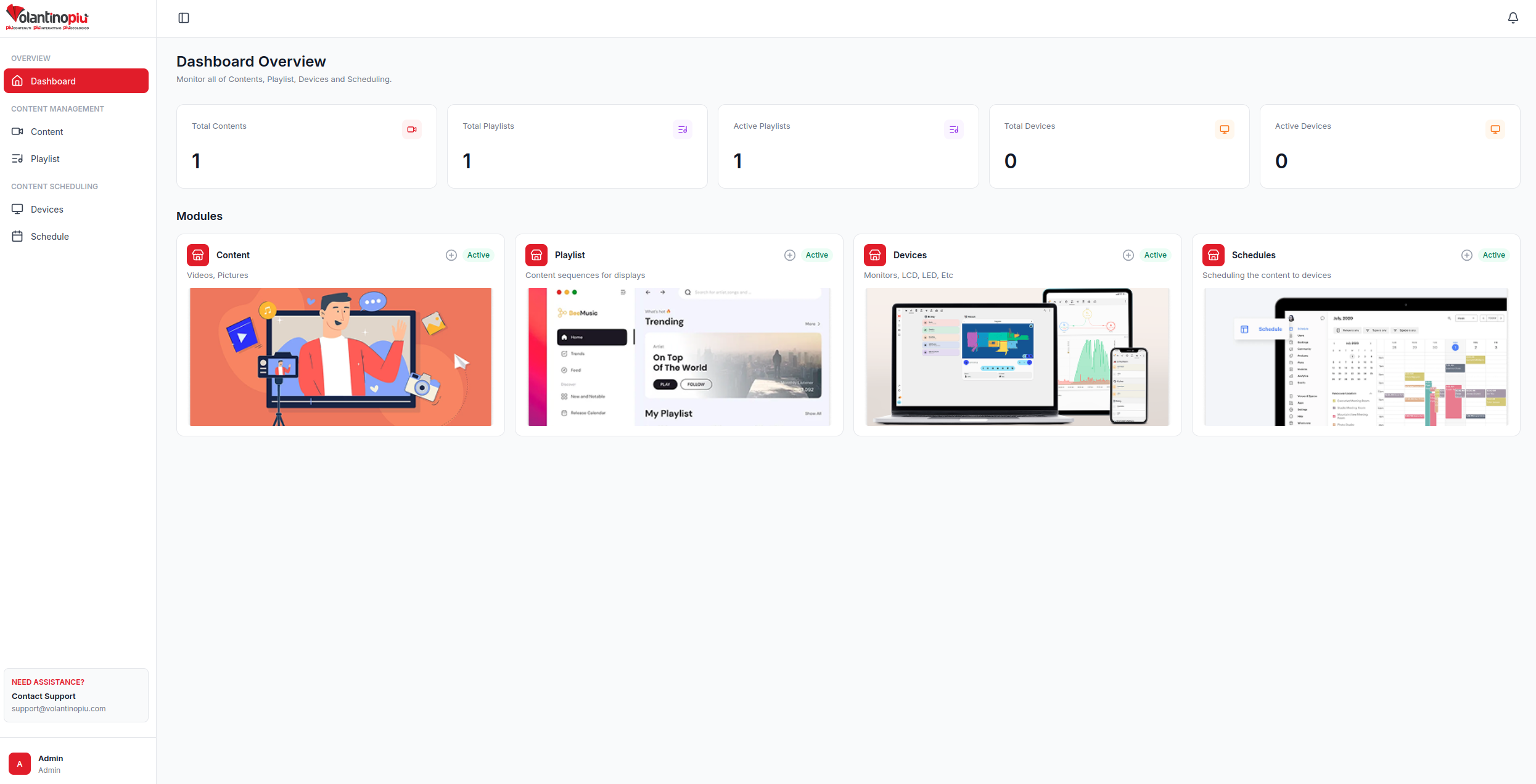
You will land on the Dashboard, which gives you an overview of your screens and recent activity.
Step 2 — Upload an image or video
- Click Content in the left menu.
- Click the Upload button (top right).
- Choose an image (JPG, PNG) or video (MP4) from your computer.
- Give it a title, then click Save.
Your file appears in the content library with a thumbnail.
Step 3 — Create a playlist
- Click Playlists in the left menu.
- Click New Playlist.
- Give your playlist a name (e.g. "Welcome Loop"), then click Save.
- In the playlist editor, click Add content.
- Select the file you just uploaded and click Confirm.
- Set how many seconds it should display, then click Save.
Step 4 — Connect your screen
- Turn on your screen. The player app will show a pairing code (e.g.
ABC123). - In the dashboard, click Devices in the left menu.
- Click Add Device.
- Type in the pairing code shown on your screen.
- Give the screen a name (e.g. "Lobby Screen"), then click Confirm.
Your screen appears in the device list as Online.
Step 5 — Send the playlist to your screen
- Click on your screen in the Devices list to open it.
- Click Assign Content.
- Choose Playlist, then select your playlist.
- Click Save.
Your screen will start playing the playlist within a few seconds. 🎉