

How-To Guides
Uploading Content
Content is any image or video file you want to display on your screens.
Supported file types
| Type | Formats |
|---|---|
| Images | JPG, PNG, WebP, GIF |
| Videos | MP4, WebM |
For best results, use 1920 × 1080 px (Full HD) files in landscape orientation, or 1080 × 1920 px for portrait screens.
How to upload a file
- Click Content in the left menu.
- Click the Upload button in the top-right corner.
- In the upload window, click Choose file or drag and drop your file.
- Click Upload.
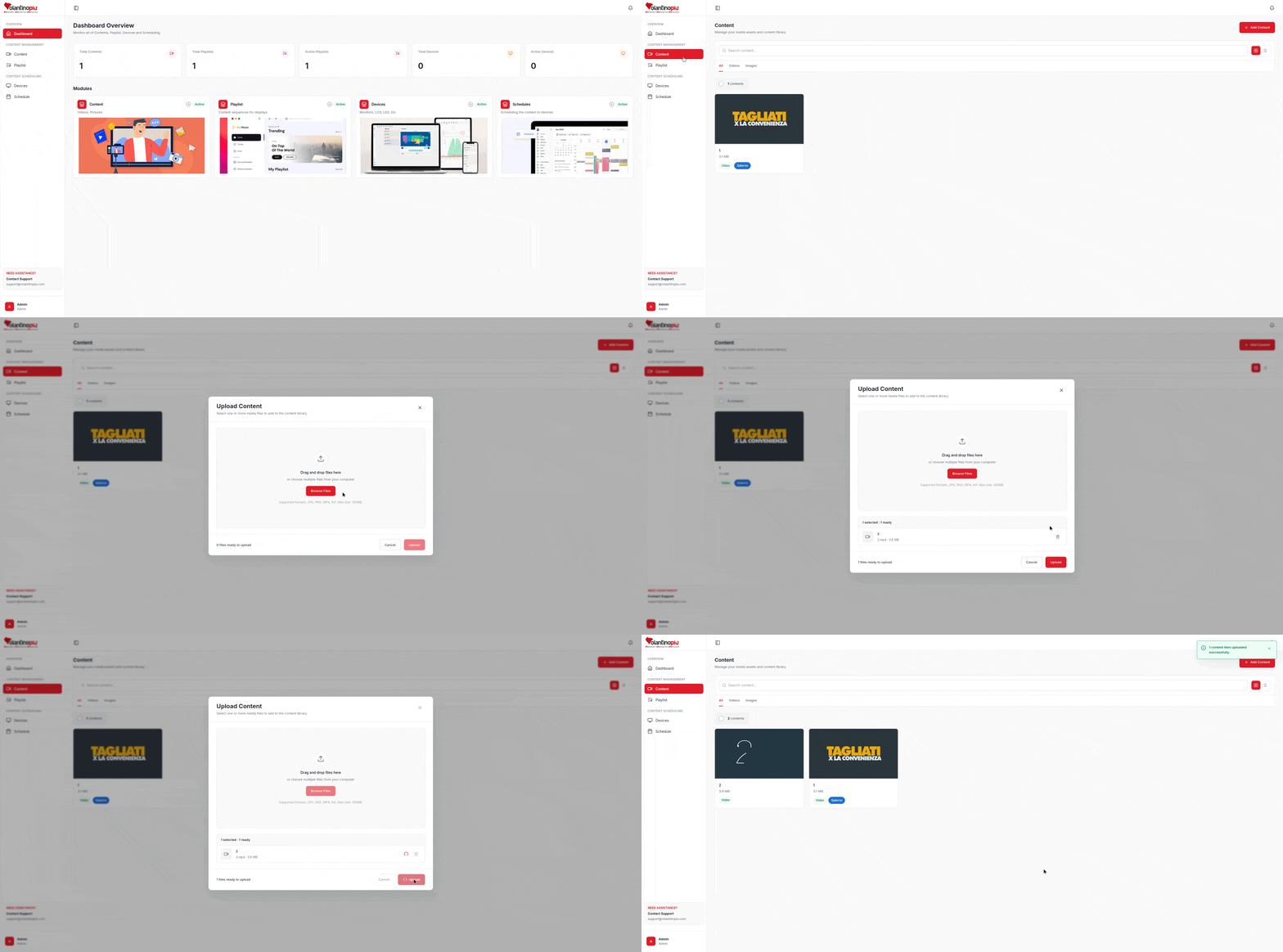
The file is uploaded. It appears in your content library.
Organising with tags
Tags help you find and filter content quickly. For example, you could tag content by location, season, or campaign.
- Open a content item.
- Click the Tags field and select or create a tag.
- Click Save.
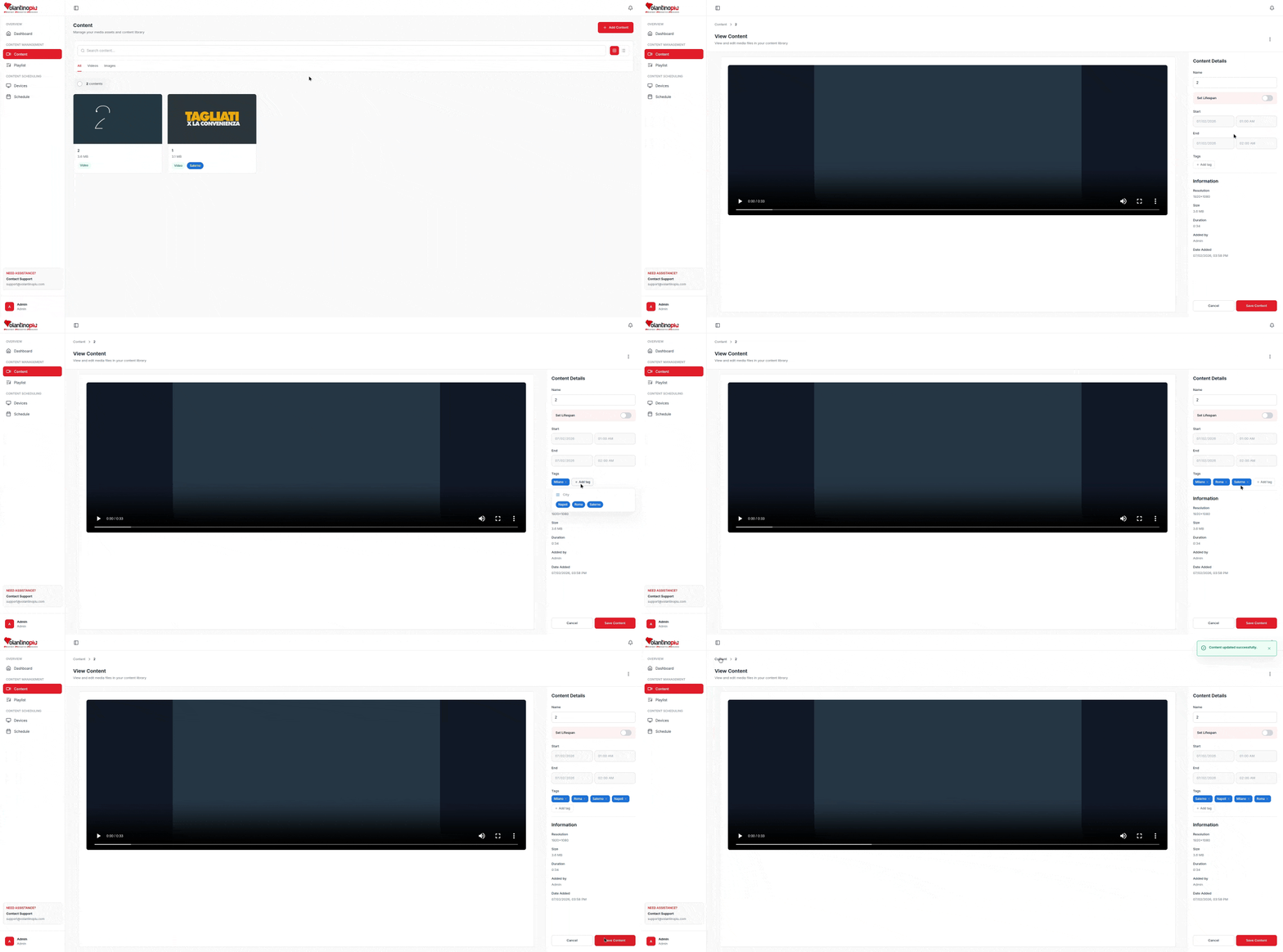
You can then filter the library by tag using the search bar at the top of the Content page.
Editing or deleting content
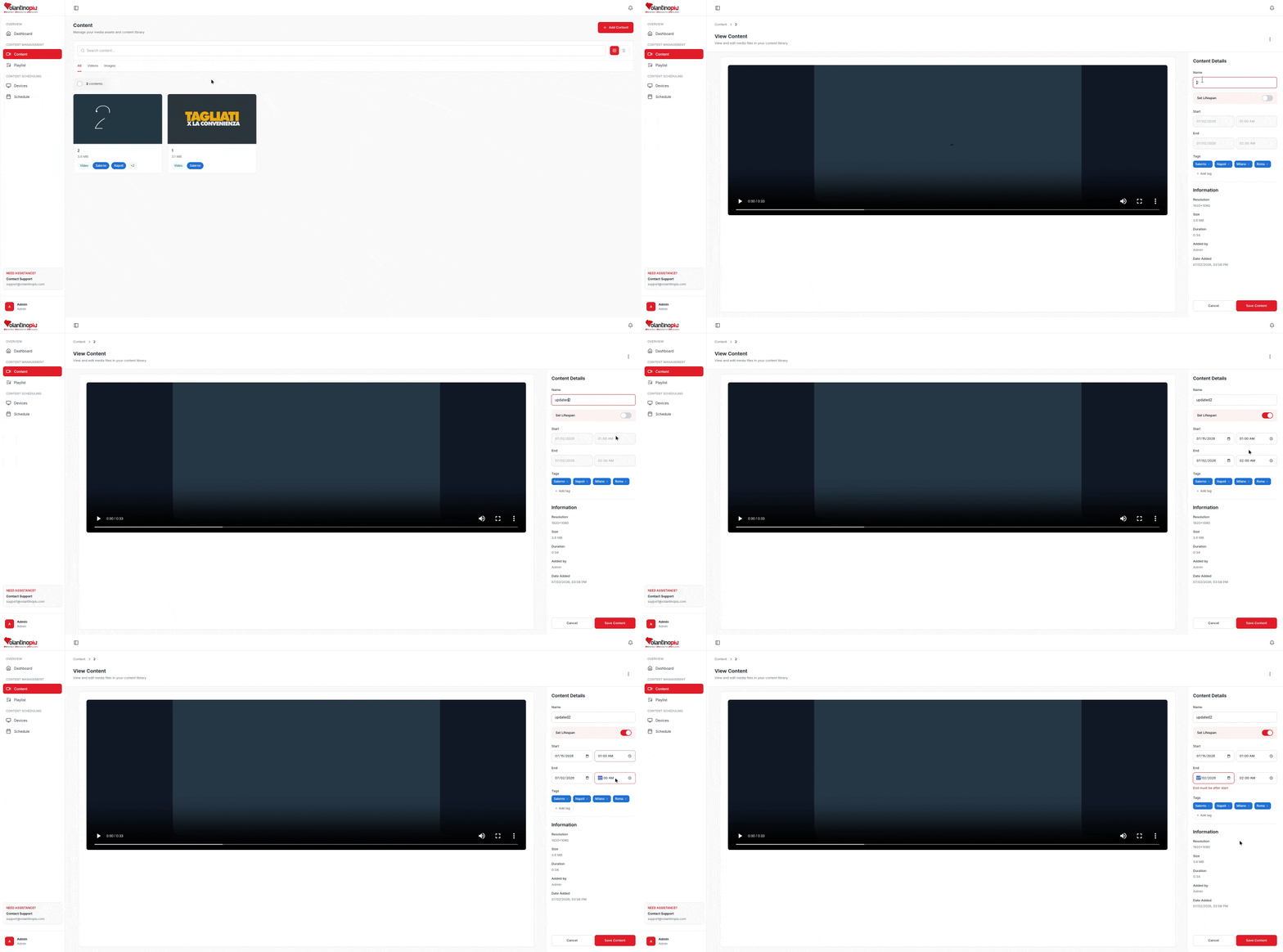
- To edit a file's title, description, or dates: click on the content card.
- Title — a name to identify this file in the library
- Valid from / Valid until — optional dates; the content will only be active between these dates
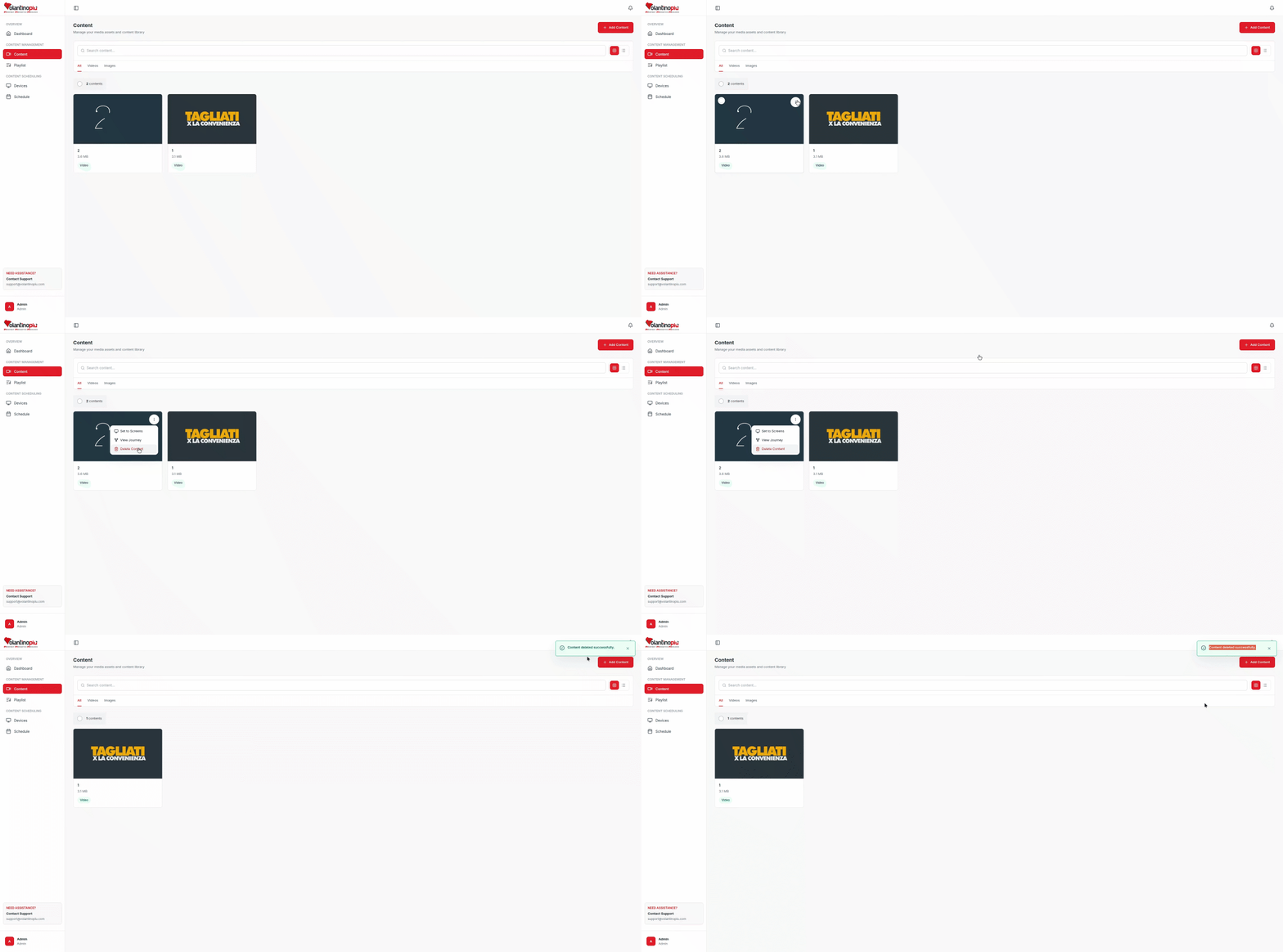
- To delete a file: click ⋯ → Delete. A file cannot be deleted if it is used in an active playlist — remove it from the playlist first.
Tips
- Keep video files under 100 MB for fast loading on all screen types.
- Use landscape (16:9) media unless your screens are mounted in portrait mode.
- Use the Valid until date for seasonal or promotional content so it stops automatically.